Apps
Read and answer email next to your work, and turn an email into a task.
What Mail is for
Mail connects your own mailbox to Servone, so you can read and answer email without leaving your work. Only you can see your mailbox. You can connect one mailbox per account.
Servone keeps the last 30 days of mail. Older mail stays in your mailbox provider, and it is not deleted by anything you do in Servone. The Mail icon on the app rail shows a count of unread emails in your inbox.
The main screen
Mail has three parts. The left panel lists your folders: Inbox, Sent, Drafts, Archive, Trash and Spam, followed by any other folders from your mailbox. The next column lists the emails in the selected folder. The reading pane shows the email you open.
At the bottom of the left panel, your email address shows the connection status: Connected, Connecting, Syncing mail, Sign-in expired, Offline or Removing mail. Click it to Reconnect or to disconnect the mailbox. The edit button next to the Mail heading starts a New email.
Connect a mailbox
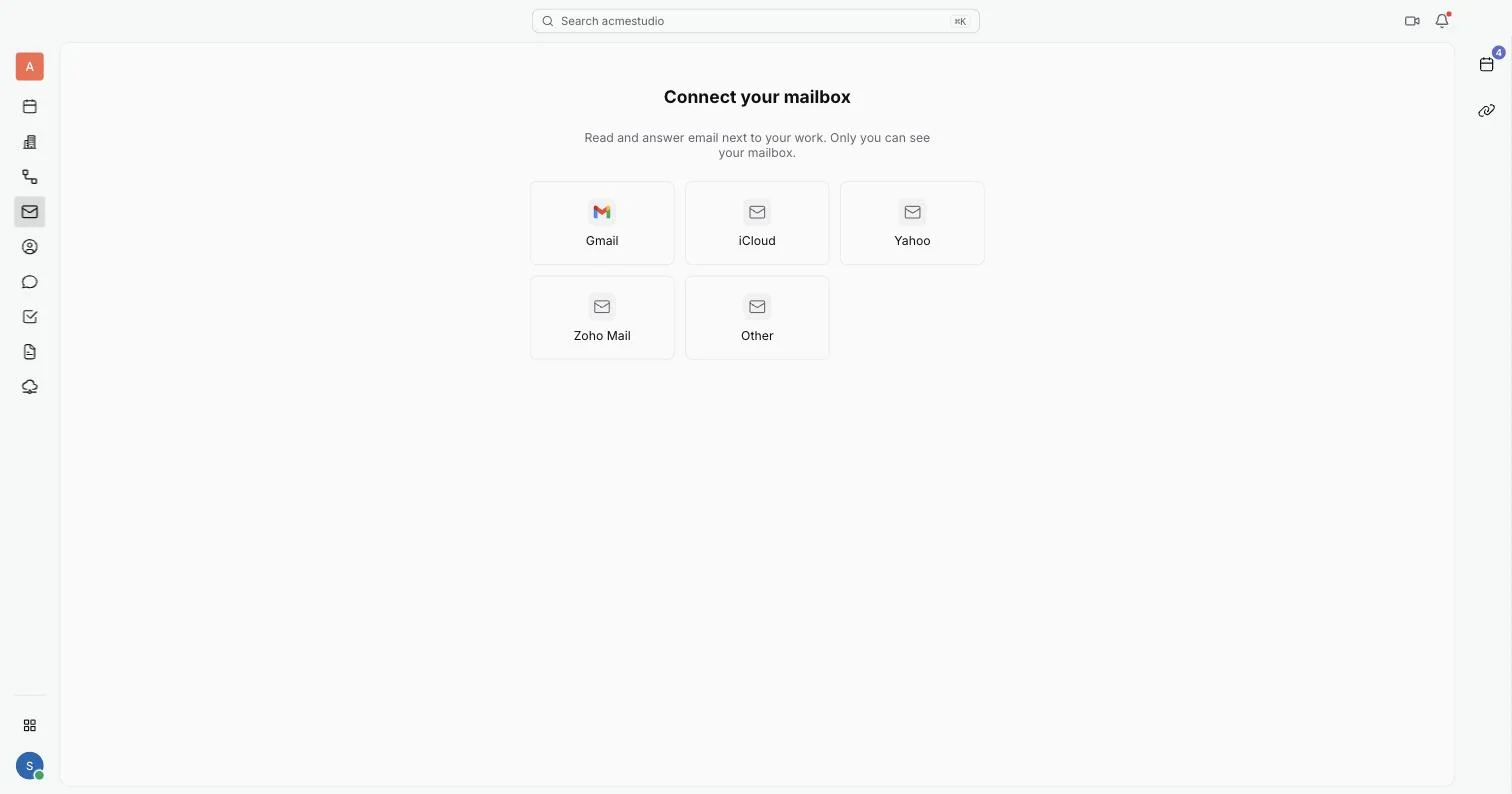
The first time you open Mail you see Connect your mailbox. The providers you can pick are Gmail, iCloud, Yahoo, Zoho Mail and Other, which is any mail server that supports IMAP and SMTP. Outlook is not available yet: its tile shows Coming soon and Sign in with Microsoft is disabled.
- Open Mail from the app rail and pick your provider.
- For Gmail, click Sign in with Google and approve access. Or click Use an app password instead to use a password.
- For the other providers, type your Email and an App password. The link How to create an app password shows how to make one with your provider.
- For Other, also fill in IMAP server (incoming mail) and SMTP server (outgoing mail), and pick the IMAP port and SMTP port.
- Click Connect. Servone checks the login, then loads the last 30 days of mail. A bar shows the progress while it loads.
Read and reply
- Pick a folder, then click an email. It opens in the reading pane and is marked as read. A thread with several messages shows them in order.
- Click Reply. A reply box opens under the thread. Use the icons next to it for Reply all, Forward, Archive, Delete and Star.
- Write your answer and click Send. The message Email sent appears with Undo for 10 seconds.
- Use the More actions menu to Mark as unread or to Move to another folder.
Images in emails are hidden by default to protect your privacy. Click Show images to load them. To act on several emails, tick their checkboxes in the list, then use the bar that shows how many are selected.
Write a new email
- Click the edit button next to Mail, or press C. A New email window opens.
- Add people in To. Suggestions come from your workspace contacts and people you wrote to before. Click Cc Bcc to add those fields.
- Fill in the Subject and the message. Use Attach files to add attachments. The limit depends on your provider, and Servone tells you when you go over it.
- Click Send. Drafts save as you type. Click Discard draft to delete one.
Turn an email into a task
- Open the email and click Create task. The New issue window opens in Tracker.
- The title is the email subject, and the description quotes the sender, date, subject and text, with an Open email link.
- Pick a project, set the other fields and create the issue.
The issue stays linked to the email. Open either one and the Related panel lists the other.
Shortcuts
When you are not typing in a field:
- J or K moves to the next or previous email. Enter opens it and Escape closes it.
- E archives and # deletes.
- U marks as read or unread, and S stars or unstars.
- R replies, A replies to all and F forwards.
- C writes a new email.