Apps
Chat
Talk with your team in channels and direct messages, reply in threads, and start a call.
What Chat is for
Chat is where the team talks day to day. A channel holds a topic that many people follow, and a direct message is a conversation with one or a few people.
The Chat sidebar groups conversations under Starred, Channels and Direct messages. Open one to read and write in the main pane. With nothing selected, the pane shows Select a channel. Two buttons next to the Chat title open Threads and Saved.
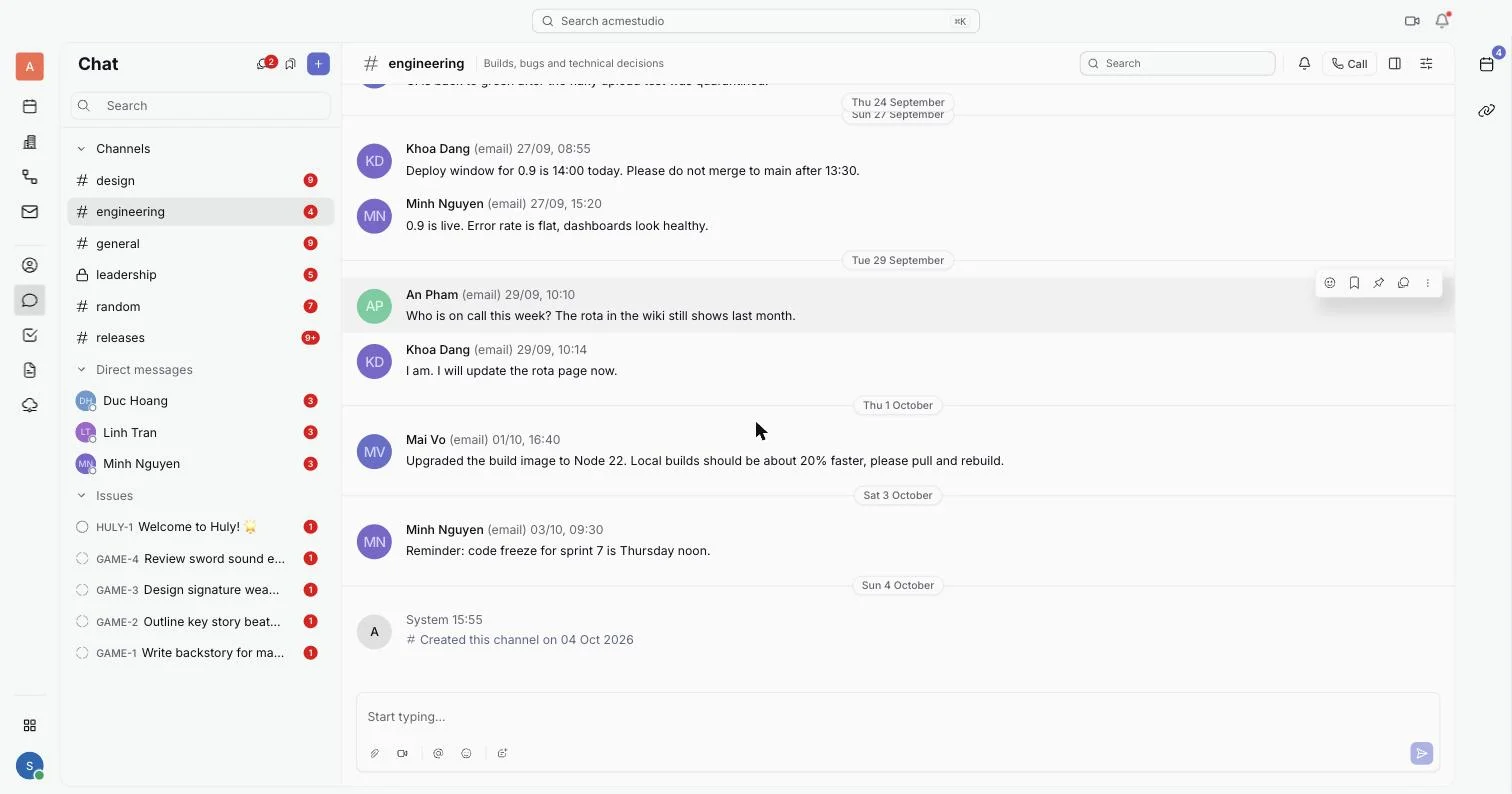
Channels
- Click the plus button next to Chat and choose New channel. A window titled New channel opens.
- Type the channel name and, if you like, a Topic (optional).
- Set Visibility to Public or Private.
- Click Create. The channel appears under Channels.
A Public channel can be found by everyone in the workspace. A Private channel is seen only by its members, so add people from its Members tab. The New channel window also has an Auto join switch that adds new employees to the channel automatically.
To join a public channel, choose Channel browser from the same plus menu, open the channel, and click Join. From a channel you can also use Leave channel, Star channel, and Archive channel (archiving is for everyone, and the history stays readable). The bell in the header sets your notifications to All messages, Mentions only or Nothing.
Use New section in the plus menu to group channels in your own sidebar sections.
Direct messages
- Click the plus button next to Chat and choose New direct chat.
- Pick one or more people, then click Next.
- Click Create, then type your first message.
Messages, threads and mentions
- Reply in a thread to keep a side discussion out of the main flow. Open Threads in the sidebar to see every thread you take part in.
- Type @ in the message box to mention a person. Mentioning a team notifies everyone in it; if some of them are not in the channel, you can add them before sending.
- Use the message menu to Edit message, Delete message, Pin message, Add to saved, Forward message or Remind me about this. Saved messages are listed under Saved.
Department channels
An admin can attach channels to a department. In the department's editor, the Default channels section lists them. New and current members of that department and its sub-departments join those channels, and people who leave stay in them. A channel joined this way shows Auto-joined by with the department names.
Start a call from a conversation
- Open a channel or direct message and click Call in the header. The button changes to In call while you are in it.
- Others see a line under the header that says who is in the call and for how long.
- To join a call that is already running, click Join on that line.