Apps
Tracker
Plan work as projects, issues and sprints, and see what is moving.
What Tracker is for
Tracker is where a team keeps its work. Each piece of work is an issue that belongs to a project, has an owner and a status, and can be grouped into epics and sprints.
The sidebar lists Your work and All issues first, then your projects. Open a project to see its pages: Issues, Timeline, Sprint, Epics, Releases, Reports and Forms. Timeline, Sprint, Epics, Releases and Reports appear only in projects of type Scrum.
Create a project
- In the Tracker sidebar, click Create project. A window titled New project opens.
- Choose a project type. Pick Scrum if the team plans in sprints.
- Type a name, then check the Identifier. It prefixes every issue number in the project, and each project needs its own.
- Optionally add a description, a default assignee for new issues, and members. Turn on Make private to limit the project to its members.
- Save. The project appears in the sidebar.
Create and assign an issue
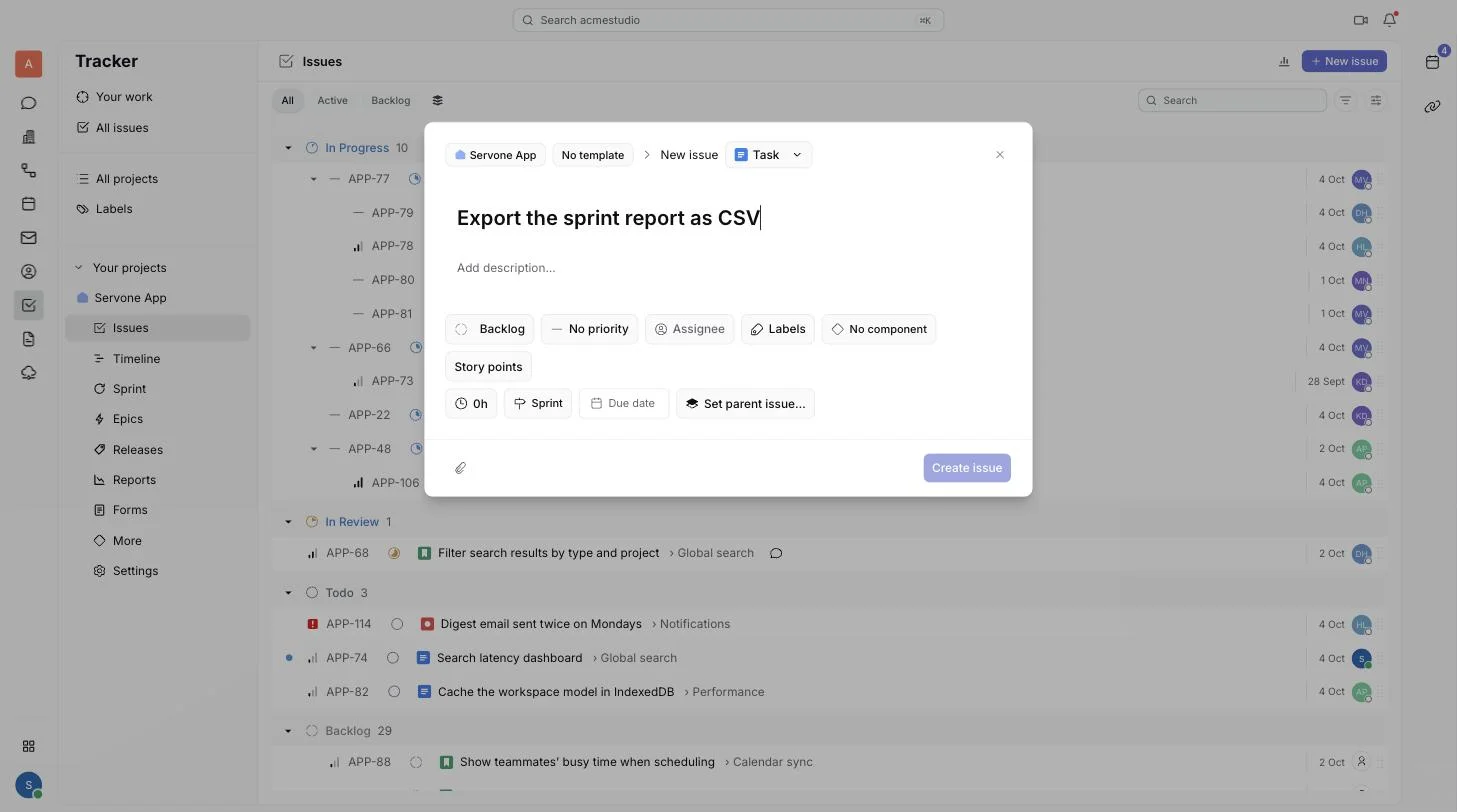
- Click New issue. A window titled New issue opens. Check the project at the top.
- In a Scrum project, choose a type: Epic, Story, Task or Bug. Use an epic for a large goal and stories, tasks and bugs for the pieces of it.
- Type the Issue title, and add a description if the title is not enough.
- Set the fields you need: Status, Priority (Urgent, High, Medium, Low or No priority), Assignee, Labels, Due date and Original estimate. In a Scrum project you can also set Story points and the Sprint.
- To make the issue a sub-task, click Set parent issue... and pick the parent. A parent shows its Sub-tasks and how many are done.
- Click Create issue.
Plan a sprint
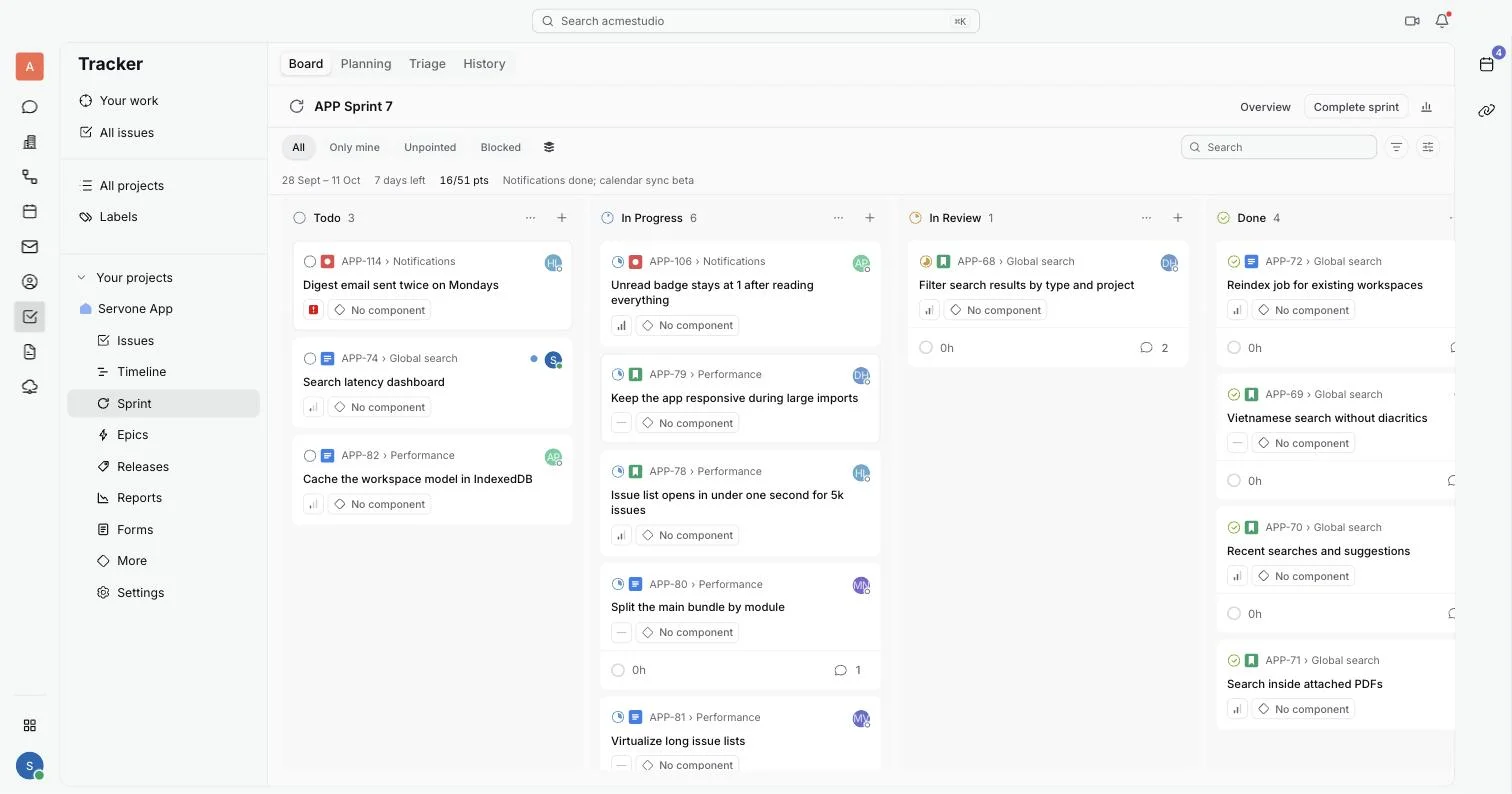
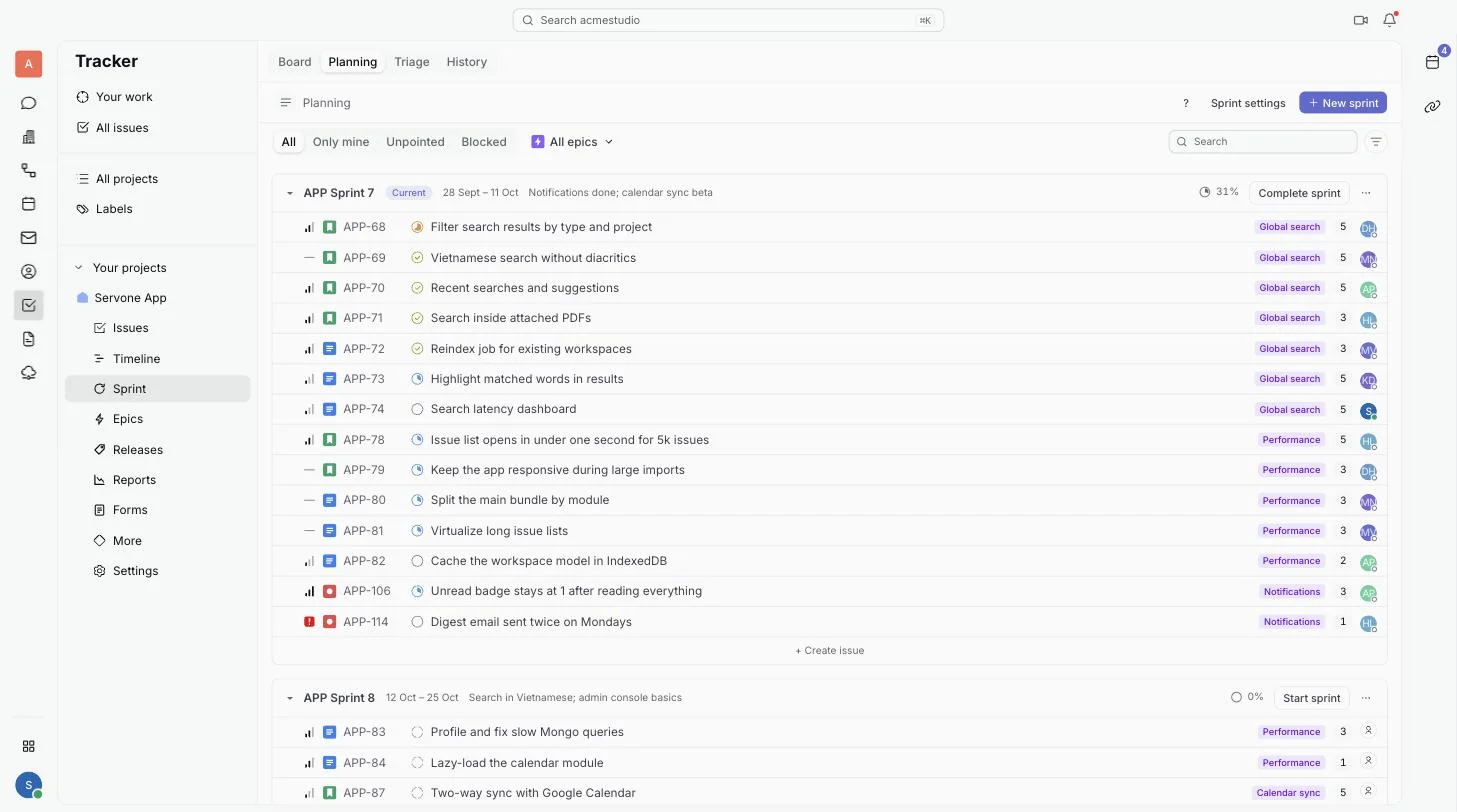
Open Sprint in a Scrum project. It has four tabs: Board shows the running sprint, Planning holds the backlog and your sprints, Triage lists backlog items that still need an estimate or an epic, and History lists past sprints.
- Open the Planning tab. Issues that are in no sprint sit in Backlog.
- Click New sprint to add one. Drag issues from the backlog into it, or select issues and click Move to sprint.
- Click Start sprint on the sprint. Set its name, goal, and length in weeks or Custom dates, then click Start. Starting a second sprint while one is running shows a warning.
- During the sprint, work from the Board tab. Filter it to Only mine, and watch the days left and points done in the header.
- Click Complete sprint when the time is up. Choose where the open issues go: a next sprint, a new sprint or The backlog. Done issues stay in the sprint.
- Open Reports and pick the sprint to see its Burndown, Burnup or Cumulative flow chart, what was Committed and Completed, Velocity and Cycle time.
Find and filter issues
- Click Your work to see issues assigned to you. Its tabs are Assigned, Active, Backlog, Created and Subscribed.
- Click All issues to see every issue across your projects, with tabs All, Active and Backlog. Open a single project's Issues page to stay inside that project.
- Click Filter to narrow the list, for example by assignee, priority or status. Use View to change how the list is grouped and ordered.
- Press Cmd+K and type words from an issue title to jump to it, or type a project page name to open that page.
Other project pages
- Epics lists each epic with its progress. Click New epic to add one, and open an epic to see its issues.
- Timeline shows epics, and issues with a sprint or dates, as bars. Switch the scale between Weeks, Months and Quarters.
- Releases groups the issues that ship together. Click Create release, then Release it when it ships.
- Reports holds the sprint report described above.
Shortcuts
On the Planning tab, when you are not typing in a field:
- J or K, or the arrow keys, move to the next or previous issue.
- Enter opens the issue and X selects it. Escape clears the selection.
- S changes status, E sets the estimate, A assigns, P sets the epic and M moves to a sprint.
- C creates an issue in the current section, and / jumps to search.
- ? shows the list of shortcuts.