Apps
Approvals
Run requests such as hiring, purchases and contracts through steps, with a manager sign-off where you need one.
What Approvals is for
Approvals is for requests that move through fixed steps and need someone to sign off, such as a hire, a purchase or a contract. Each kind of request is an approval. Each request inside it is an item, which sits at one step at a time.
A step can require approval. The item cannot move past that step until the right person approves it.
The main screen
The sidebar starts with My work, then lists your approvals grouped by department. Approvals with no department are listed under No department. Open an approval to see its pages: Items, Intake and Settings.
- My work has two tabs. Assigned shows open items assigned to you. Created shows items you created. You see only approvals you are a member of.
- Items lists every item in the approval, with tabs All and Active. Click New item to add one.
- Intake lists items that have no assignee yet. It appears only when Intake is turned on in the approval's settings.
- Settings holds the steps, members, request form and automation, described below.
Create an approval
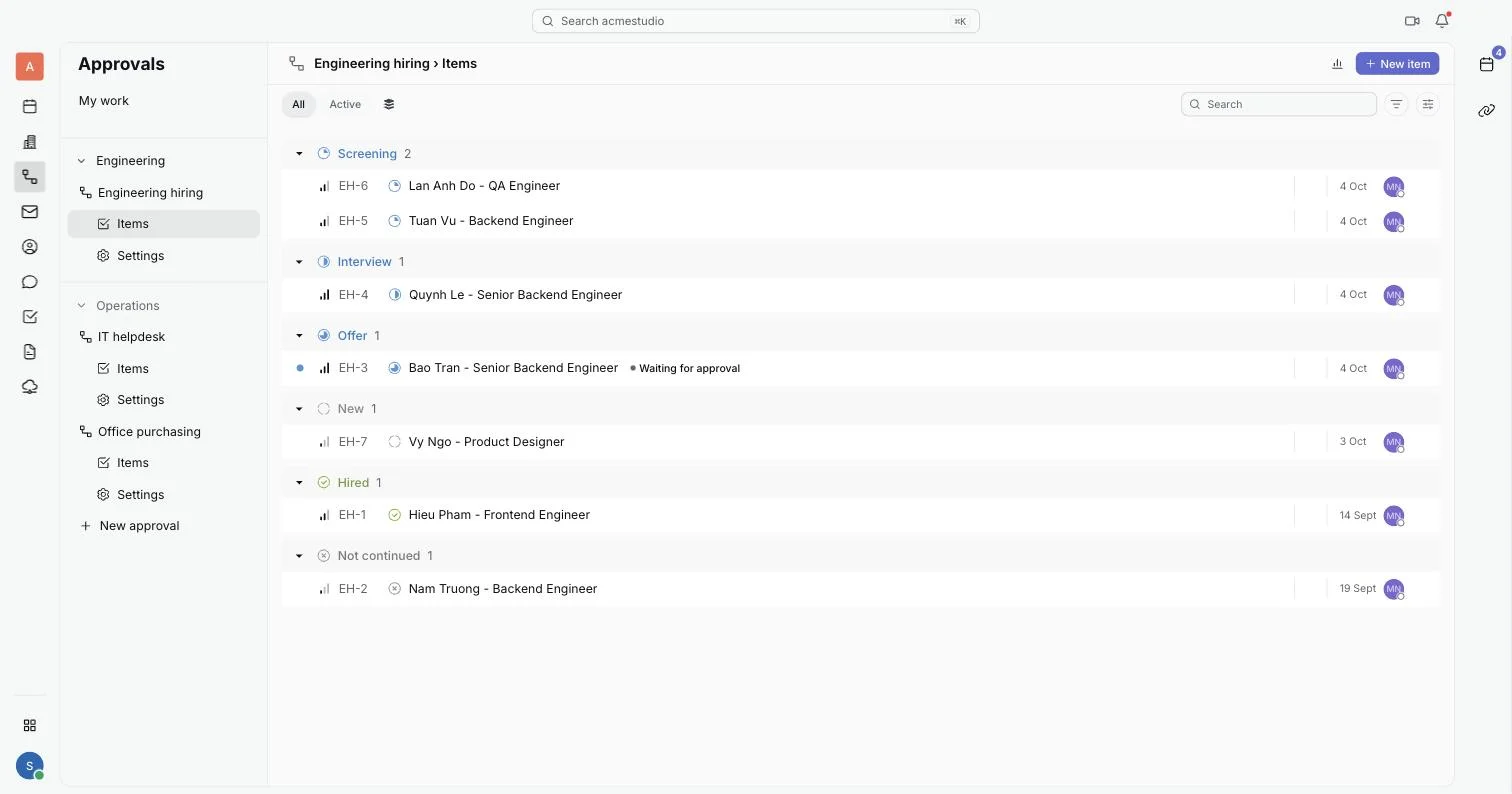
- At the bottom of the Approvals sidebar, click New approval. A window titled New approval opens.
- Type an Approval name, for example Sales hiring.
- Pick a Department. It is filled in from your profile when possible.
- Choose a Template. Hiring takes candidates from screening to hire, and the manager approves offers. Purchase takes requests from quote to order, and the requester's manager approves. Contract takes contracts from draft to signature, and the manager approves before signing. IT Helpdesk handles incidents and requests against response and resolution targets. Blank starts from New, In Progress, Done and Canceled. Onboarding and Offboarding are also listed.
- Click Create approval. The new approval opens on its Items page.
Submit a request
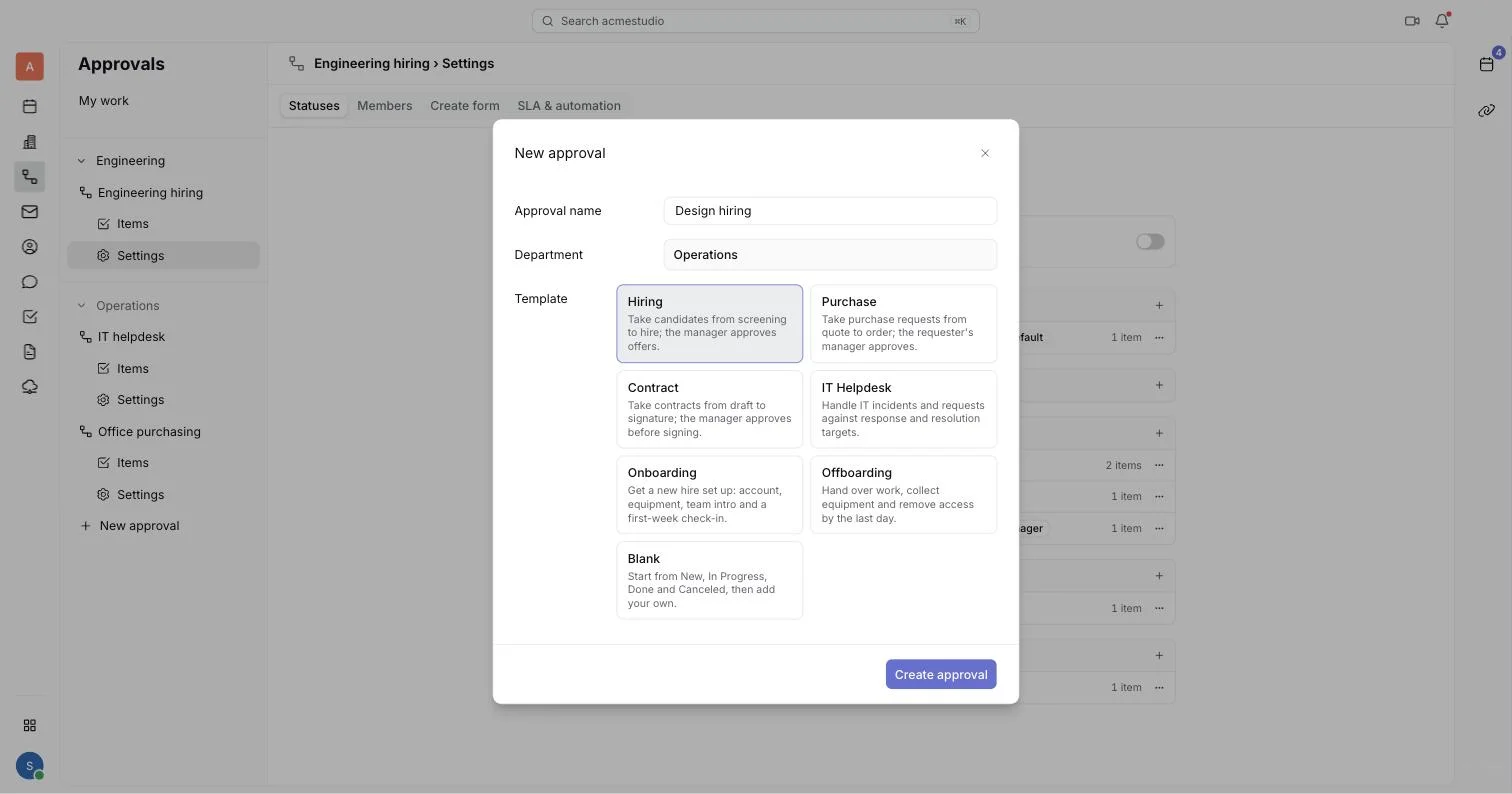
Each approval can have a default form. When you add an item, the form's questions come with it, and the required ones must be answered before the item can be created.
- Open the approval and click New item on its Items page.
- Answer the form's questions, then create the item.
- The item opens with a bar of its steps. Until required questions are answered, the bar shows how many are left, for example "2 required left", and the move to the next step is disabled. Click the count to jump to them.
Approve or reject
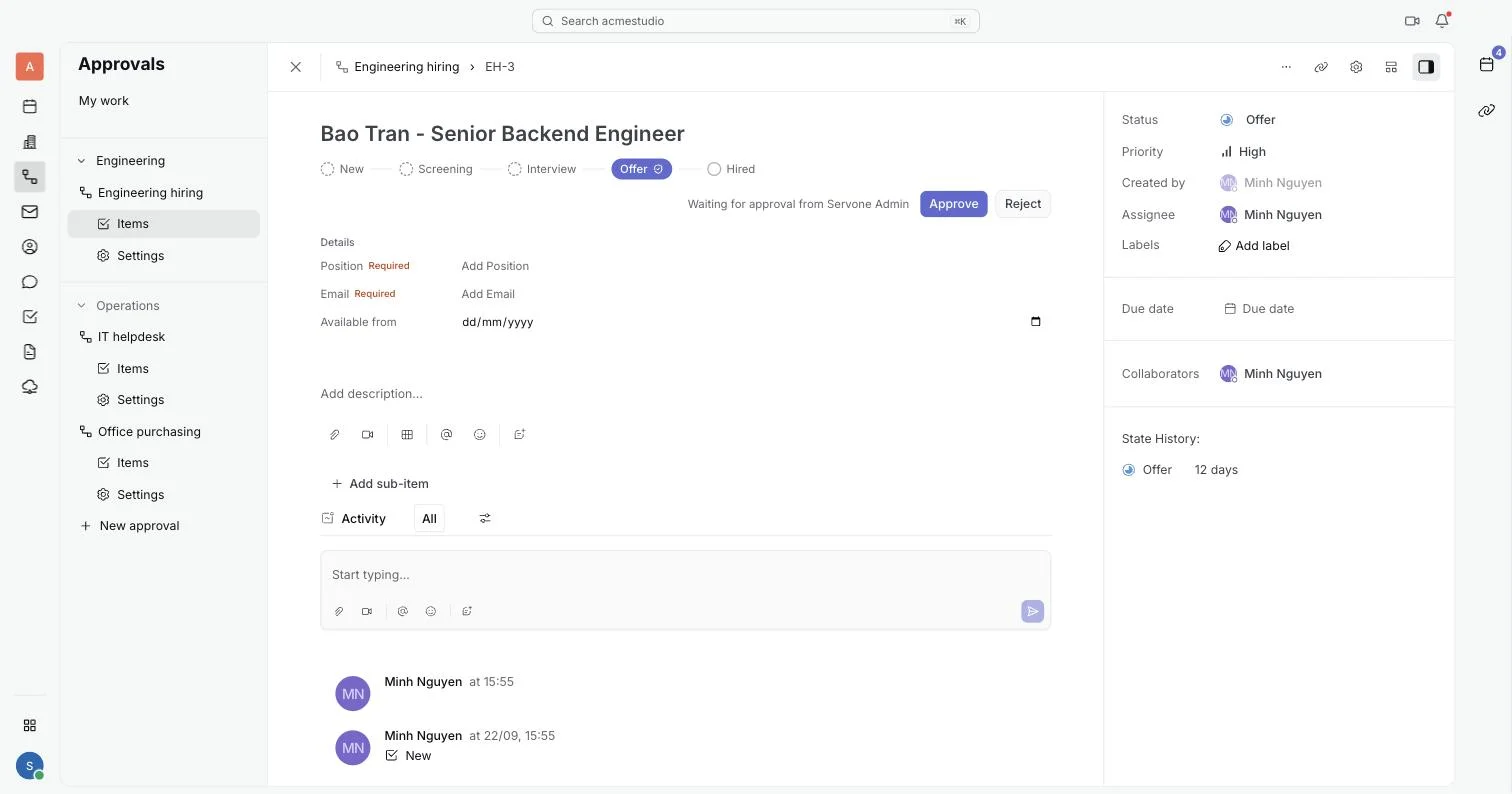
Open an item to see its steps along the top. A step that needs sign-off is labeled Needs manager approval or Needs approval. When the item reaches that step, the bar says Waiting for approval from the approver's name. If the approver's name is not known, it says Waiting for approval.
- Open the item that is waiting for you. You can find it in My work.
- Click Approve to let it move on. The step then reads Approved by your name and the date.
- Or click Reject. A window titled Reject request asks for a Reason of at least 10 characters. The requester sees this reason.
The person who asked can click Withdraw while the request is still waiting. A step that was passed without approval shows Not approved.
Intake
Intake is a holding step for new items. When it is on, items from forms land there first and the intake owner is notified, then someone picks them up. The Intake page lists the items that have no assignee.
- Open the approval's Settings, then Statuses.
- Turn on the Intake switch and pick the owner.
- Open the Intake page. Assign each item to someone, and it leaves the list.
Statuses and members
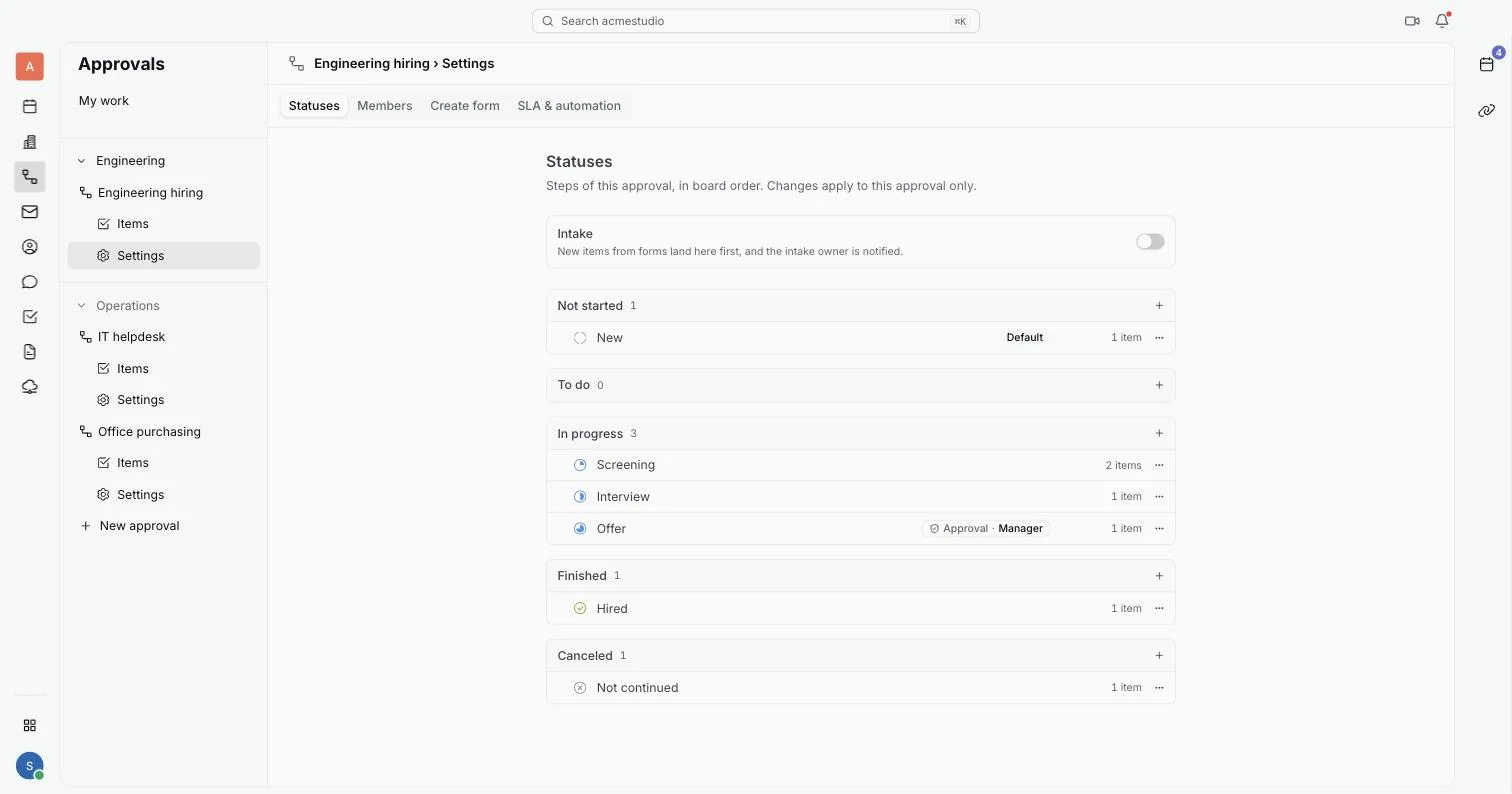
Open an approval's Settings. It has four tabs: Statuses, Members, Create form and SLA & automation.
- Statuses are the steps, in board order, in groups such as Not started, To do, In progress, Finished and Canceled. Rename a step, move it up or down, or choose Make default for new items. Changes apply to this approval only.
- To require sign-off at a step, open its menu and choose Require approval by, then Manager or A specific person.... Choose Turn off approval to remove it. A step with sign-off shows an Approval badge.
- Members are the people who can see and take part in the approval. Click Add member, or turn on Sync with department so everyone in the department and its sub-departments joins, now and later. Nobody is removed by the sync. Owners carry an Owner badge.
Hand off to another approval
A handoff starts a linked item in a second approval when an item moves into a chosen step. It runs once per item.
- Open the first approval's Settings, then SLA & automation.
- Under Start another approval, set When an item reaches to the step that triggers it.
- Set Start an item in to the second approval.
- Set Assign it to to No one, Same assignee or A specific person, then click Save.