Apps
Calendar and meetings
Schedule events, start video meetings, book rooms and request leave in one place.
What Calendar is for
Calendar is where a team keeps its time. Create events, invite colleagues, start video meetings, book rooms and ask for time off.
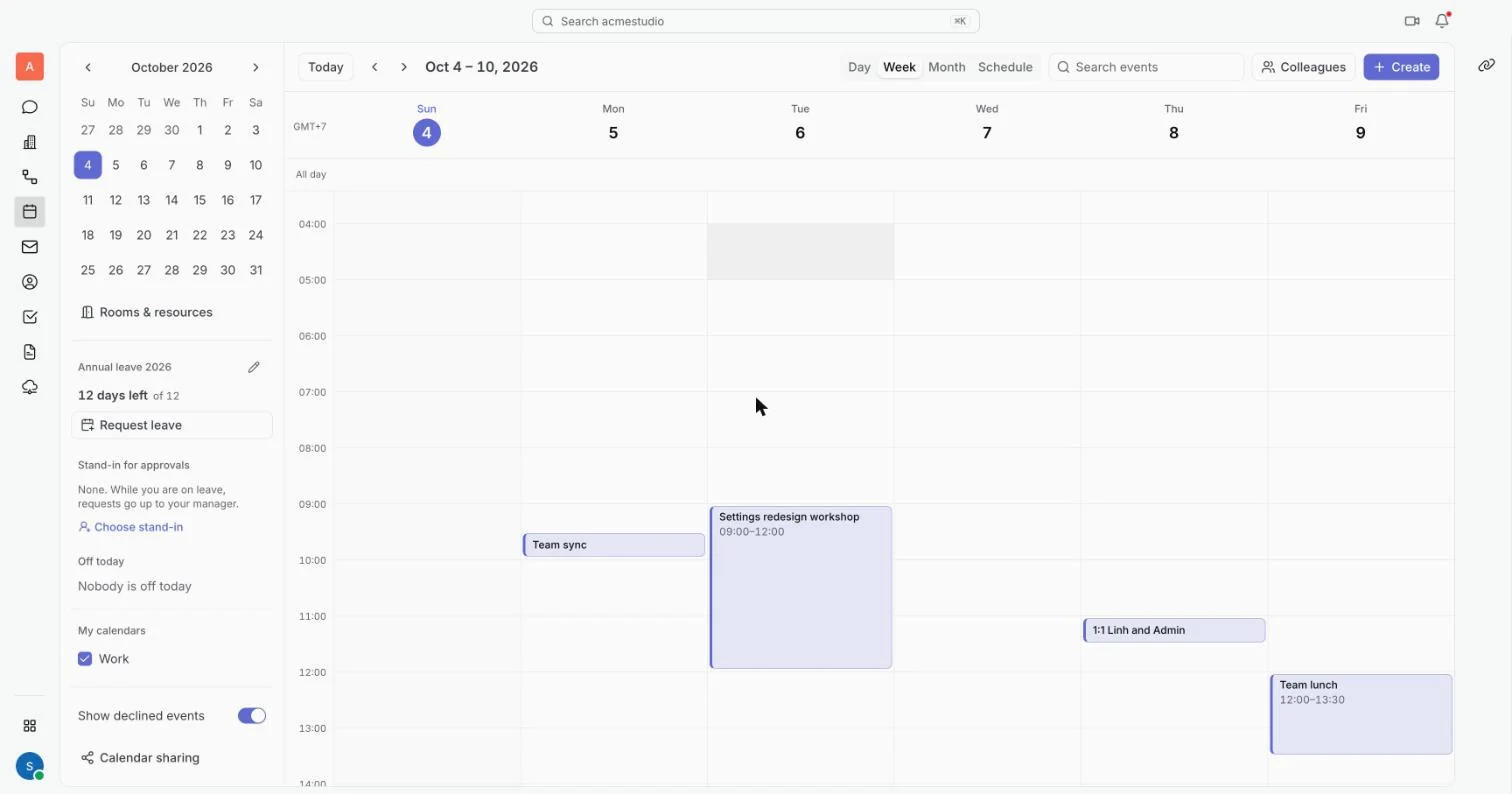
The top bar has Today, the previous and next arrows, the current date range, the view tabs Day, Week, Month and Schedule, a Search events box, Colleagues and Create. The left rail holds a month picker, Rooms & resources, your annual leave, Off today, My calendars, a Show declined events switch and Calendar sharing.
Create an event
- Click Create, or click an empty spot in the Day, Week or Month grid. A small window opens.
- Type a title and check the start and end times. Turn on All day if there is no set time.
- Add guests: click Add guests, then search for a colleague or type an email address to invite someone outside the team.
- To add a video meeting, click Add video meeting. Guests press Join on the event.
- Click Save. For repeats, a location or reminders, click More options first. The full New event window opens, and its button reads Create event.
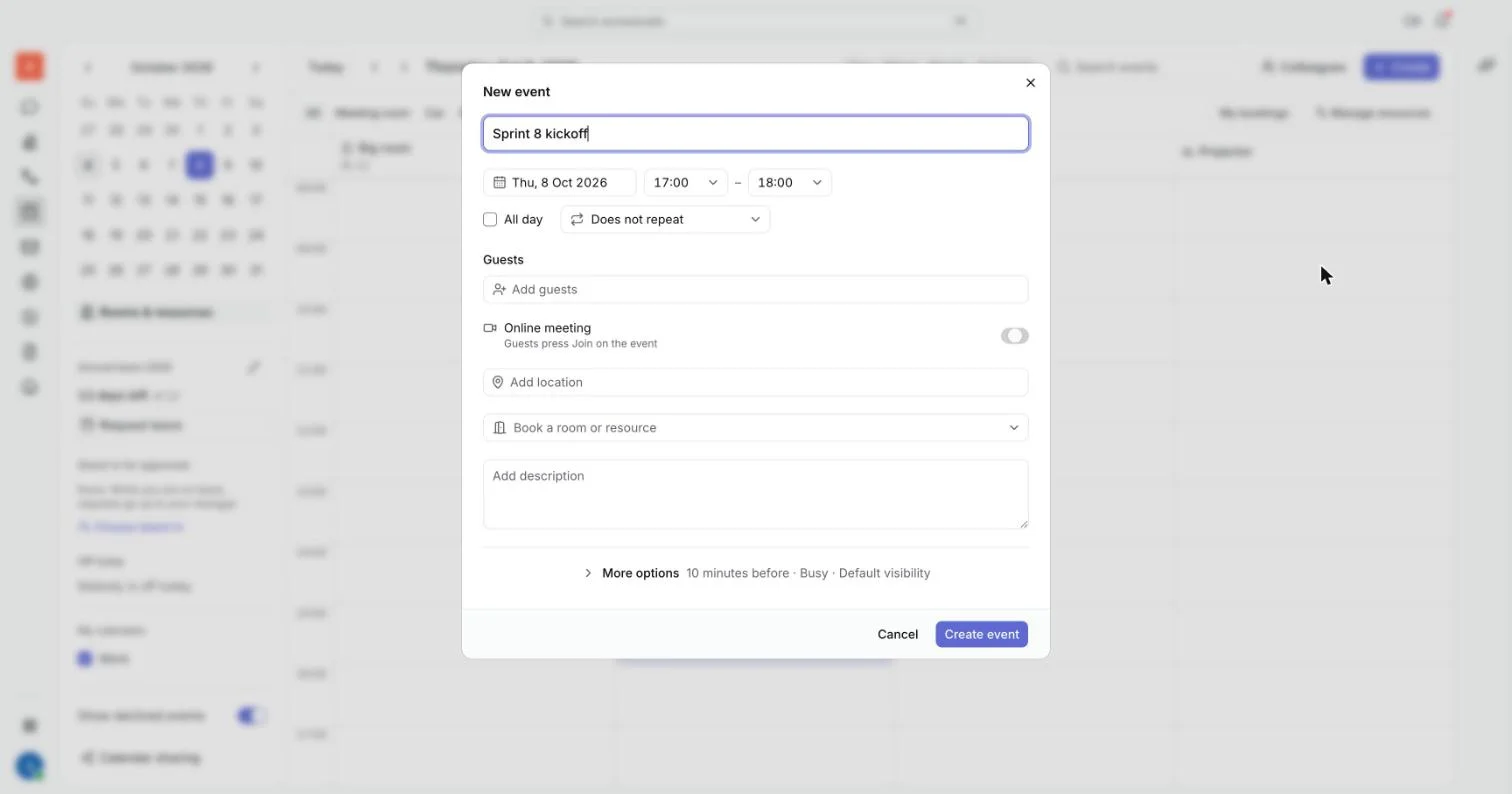
In the full window, Repeat offers Daily, Weekly, Every weekday (Mon to Fri), Monthly, Annually or Custom... with an interval, days and an end. Find a time shows when your guests are busy, and a click on a free spot moves the event there. Under More options you set Reminders, Show as, Visibility and what guests can do: Modify event, Invite others and See guest list.
Edit, reply and delete
- Click an event to open its card. The organizer sees Edit and Delete. A guest sees Going? with Yes, Maybe and No, and can add a note for the organizer or Propose a new time.
- On a repeating event, edits, replies and deletes ask whether they apply to This event, This and following events or All events.
- Only the organizer can change time, title and guests.
- Click Colleagues to lay other people's calendars over yours.
- Under My calendars, tick or untick a calendar to show or hide it. Calendar sharing sets what colleagues see on each calendar you own: All details, Busy / free only or Private.
Video meetings
Meetings start from where the conversation already is: an event or a chat.
- From an event: add a video meeting as above. On the event card, Join is the main button from 10 minutes before the start until the end, or whenever someone is already in the call. Outside that time the button reads Open meeting.
- From a chat: open a channel or direct message and click Call in its header. The button reads In call while you are in it.
- From the Meetings app: click Meet now for a quick call, or Meeting to schedule one. The list groups meetings as Live now, Today, This week, Later and Past. Open one to see its agenda, Action items and Attendees.
- To invite someone who has no account, open the meeting as its organizer. Click Copy guest link on the event card or in the Meetings detail view.
- Send the link to your guest. The link opens only that meeting, and it stops working about a day after the meeting ends.
- The guest waits on the page until someone is in the call, then presses Join.
Book a room or resource
- Click Rooms & resources in the left rail. Each column is a room, car or piece of equipment, and the grid shows its bookings for the day. Filter by type, or switch on My bookings.
- Click a free slot in a column. The event window opens with that room and time filled in.
- Add a title and guests, then click Create event. You can also pick a room inside any event with the Room or resource field.
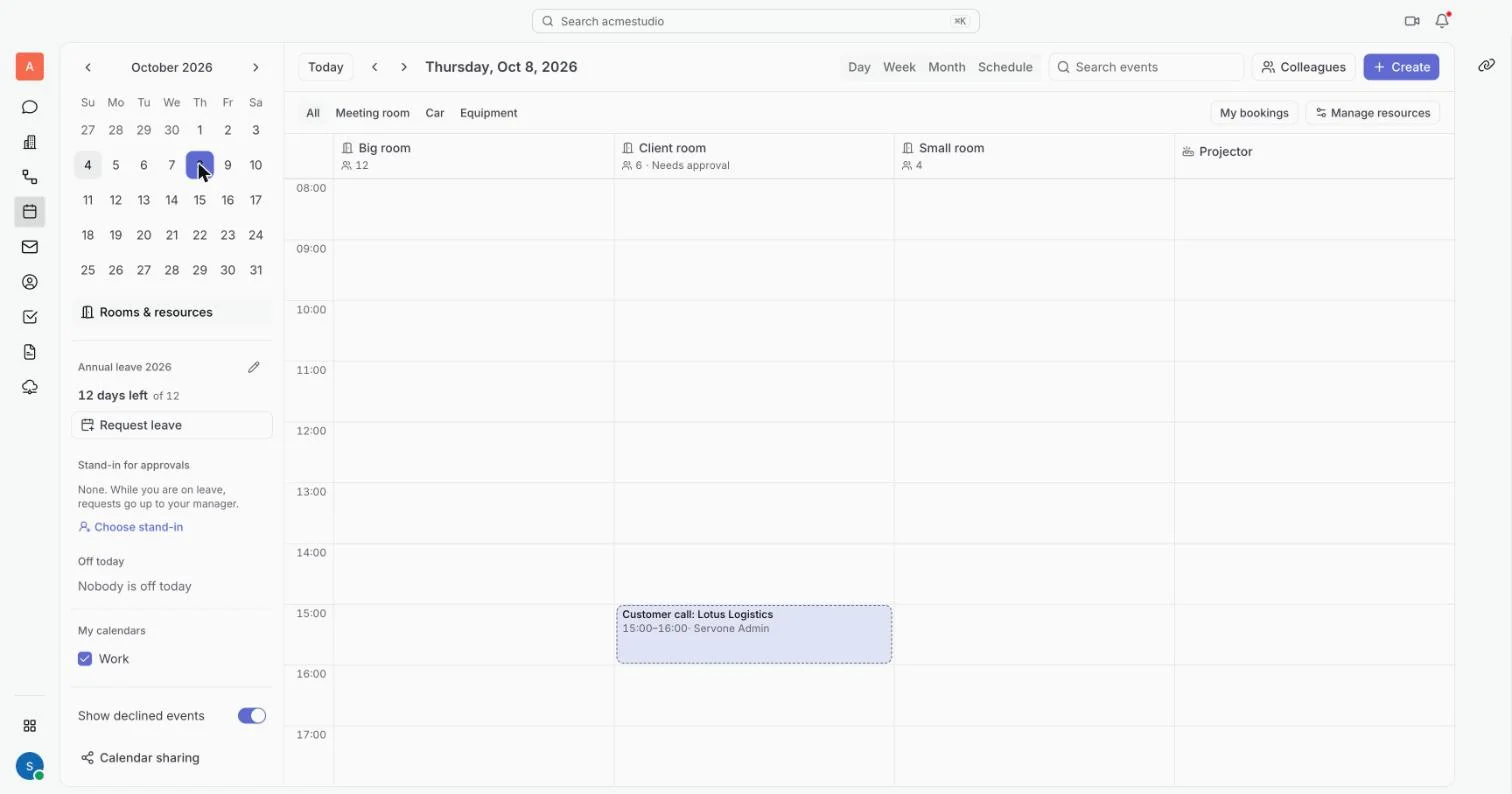
If the slot is taken, the window says so and offers Free that day times to click. Some resources show Needs approval: the booking stays pending and holds the slot, and the button reads Send for approval. A maintainer adds and edits resources with Manage resources.
Request leave
The left rail shows your annual leave for the year, such as how many days are left out of your allowance, and any days awaiting approval.
- Click Request leave.
- Choose a Type: Annual leave, Sick leave or Paid personal leave.
- Set From and To. The window counts the working days and shows how many annual leave days remain once the request is approved. If it goes past your allowance, a warning appears, and you can still send it.
- Add a Reason if you like, check the Approver, and click Send request. Approved leave then shows on the calendar.
Off today lists colleagues who are on leave, with the date they are off until. A department lead also sees Stand-in for approvals. Click Choose stand-in, pick a colleague, and requests go to them while you are on leave. Turn on Also on set dates to cover a trip or a busy week too, and use Remove stand-in to stop.