Apps
Drive
Keep team files in shared drives and folders, with versions and per-drive access.
What Drive is for
Drive is where a team keeps files. Files live in a drive, and a drive can hold folders. Each drive has its own owners and members, so access is set per drive rather than per file.
Data exports from Settings also land in a drive named Export. See the last section.
The main screen
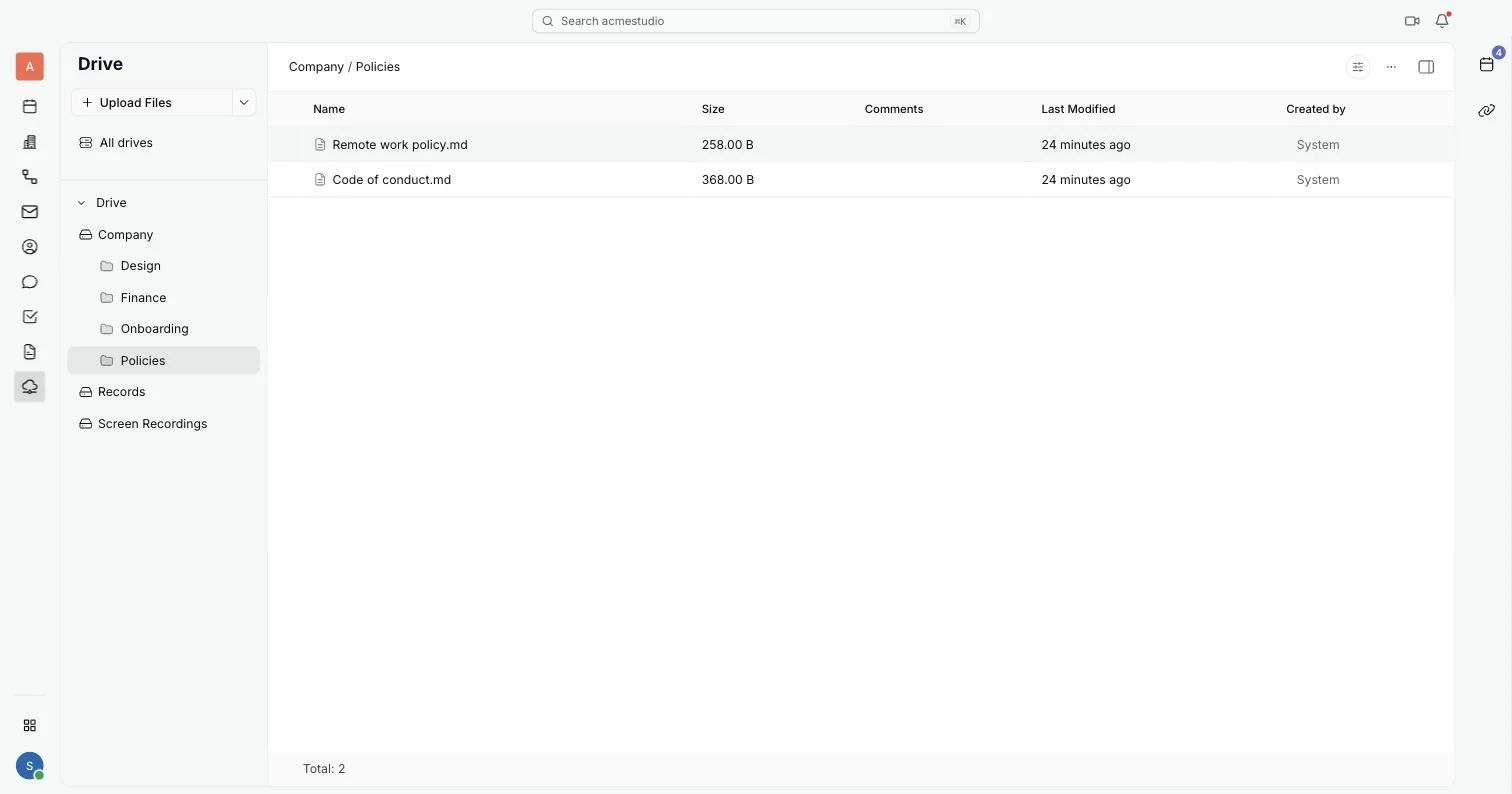
The sidebar lists All drives first, then each drive you belong to, with its folders underneath. Open a drive or a folder to see its contents.
The contents view has a search box, a Filter button and a view switcher between table and Grid. The table shows the name, size, comments, last modified date and who created each item. The ... button opens more actions for the drive or folder.
Create a drive and set access
- Click Create Drive. A window titled Create Drive opens.
- Type a Name, and optionally a Description.
- Check the Owners. Owners are also added as members.
- Add Members. Turn on Make private so that only members can see the drive. Turn on Auto join to add new employees automatically.
- Click Create. The drive appears in the sidebar.
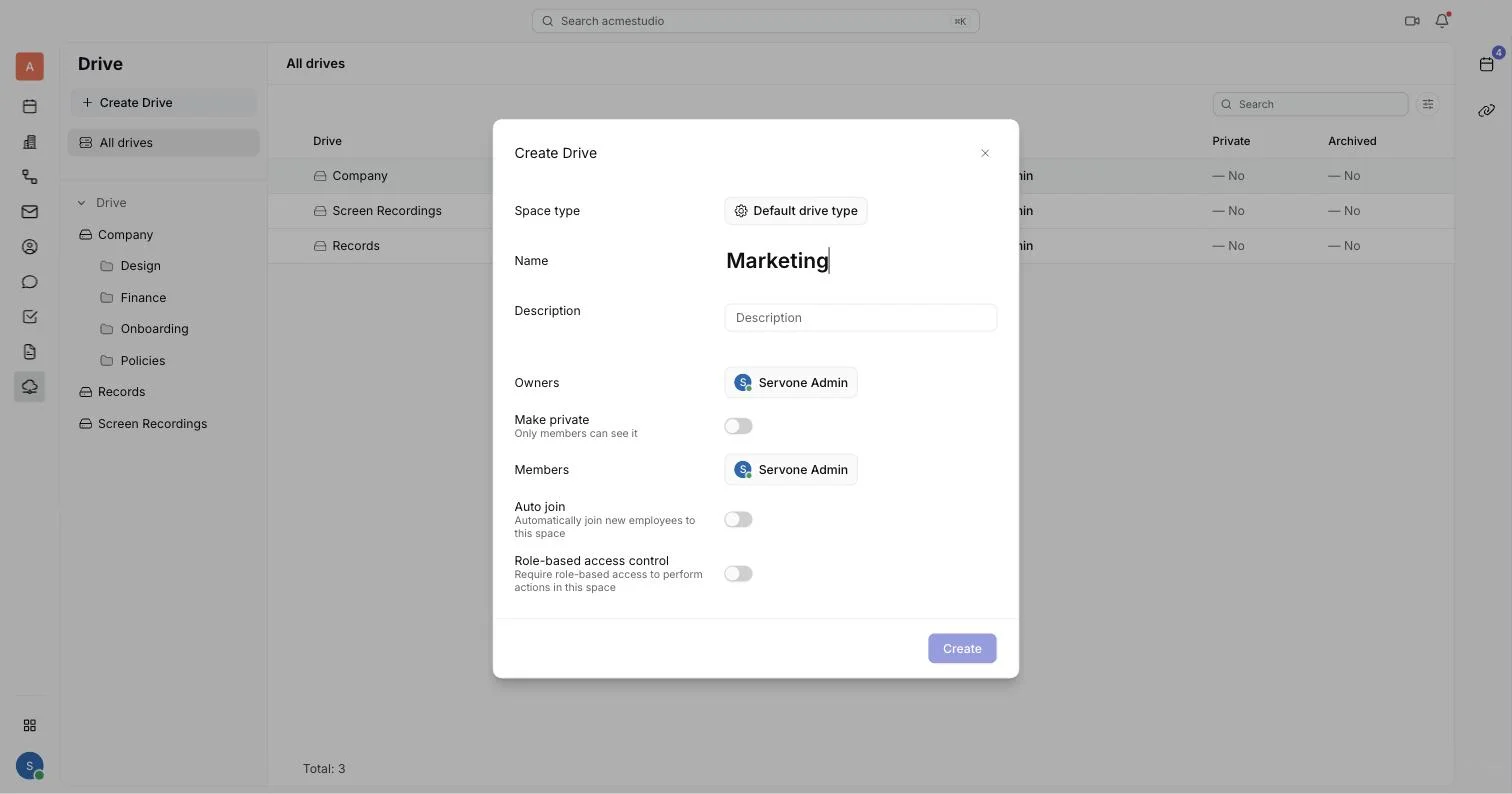
To change access later, open the drive's ... menu and choose Edit Drive. The same window opens, with Save in place of Create. The Role-based access control switch makes actions in the drive depend on a role. The permissions a role can grant are create, update and remove for files, and the same for folders.
Upload files and folders
- Open the drive, or the folder you want to upload into.
- Click Upload Files or Upload Folders in the header, and pick what to upload. You can also drag files and folders onto the contents area.
- Watch the progress, shown against the drive or folder you are uploading to.
When you upload a folder, its subfolders are created in the drive to match. You see the upload buttons only if you may create files in that drive. Use Create Folder to add an empty folder.
Preview, download and manage files
- Click a file. It opens in a panel with a preview, and its details on the side.
- Click the download icon in the panel to download it. In a list, right-click the file and choose Download.
- Right-click a file or folder for Rename, Move and Delete. Folders also offer Create Folder.
Versions
- Open the file and click the upload icon in the panel, then choose the new file. It becomes the next version. You see this icon only if you may update files in that drive.
- When a file has more than one version, a File versions table lists them, newest first, with size, date and who added each one.
- To go back, right-click an older version and choose Restore. It becomes the current version.
The Export drive
Workspace owners start an export in Settings, under Export: choose the Data to export, the Export format and Include content, then click Export. A message confirms that the export started and that you will be notified in your Inbox.
When it finishes, the archive is saved as a zip file in a drive named Export. Servone creates that drive the first time an export completes.
- Open Inbox. A notice says Export completed. Your files are ready. You can download them from the drive.
- Open the notice. It shows the archive as, for example, an export with its format in brackets, and the time it finished.
- Click Download to get the file, or Open in Drive to see it in the Export drive.